❌
 ctosy
(beta)
ctosy
(beta)
Custom AI snippet is no different from regular custom snippet, except its code is generated by AI. Note: before you can use AI to generate Ectosy content you need to enter your AI API key into Options and settings->User->AI API Keys. Get your AI API key(s) with Claude, Gemini Interactions or OpenAI Platform.
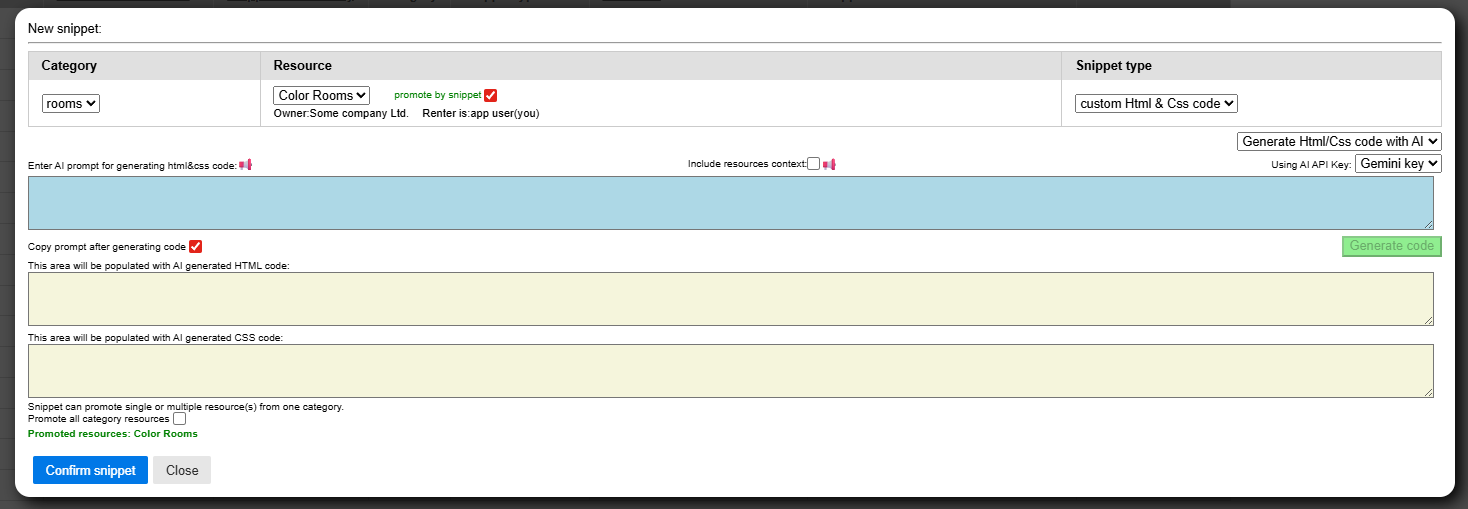
Enter AI prompt for generating code, include resources context (checkbox option) if your prompt references some of its properties (image, description) and choose the AI API key you want to use. Click on Generate code.
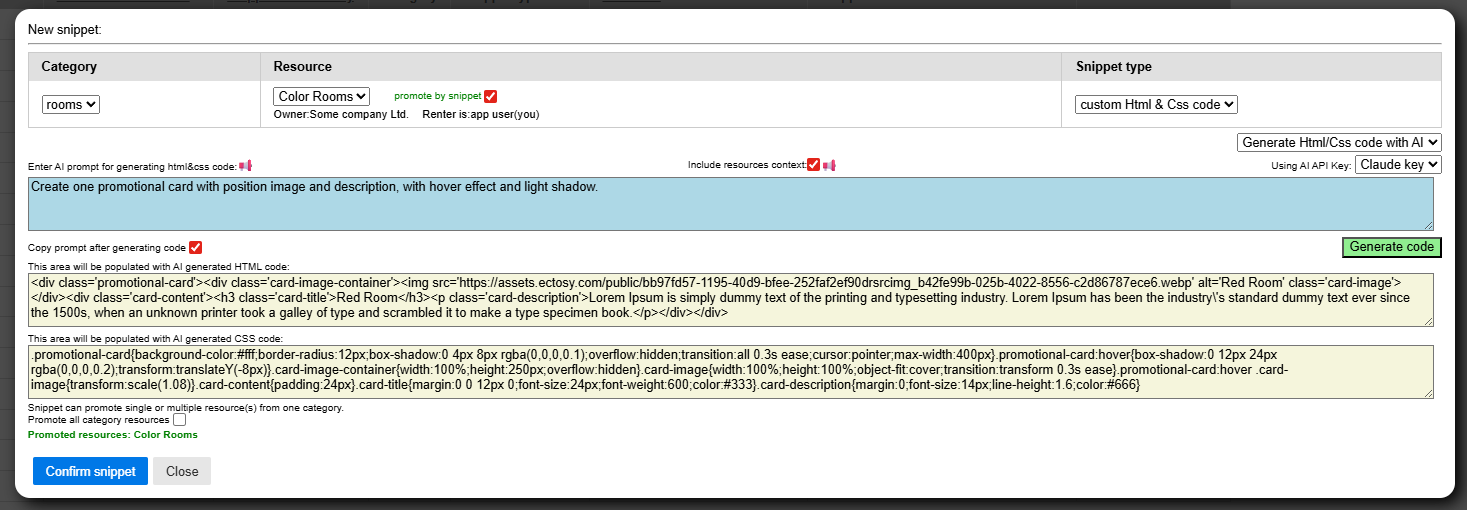
Confirm snippet and see the result:
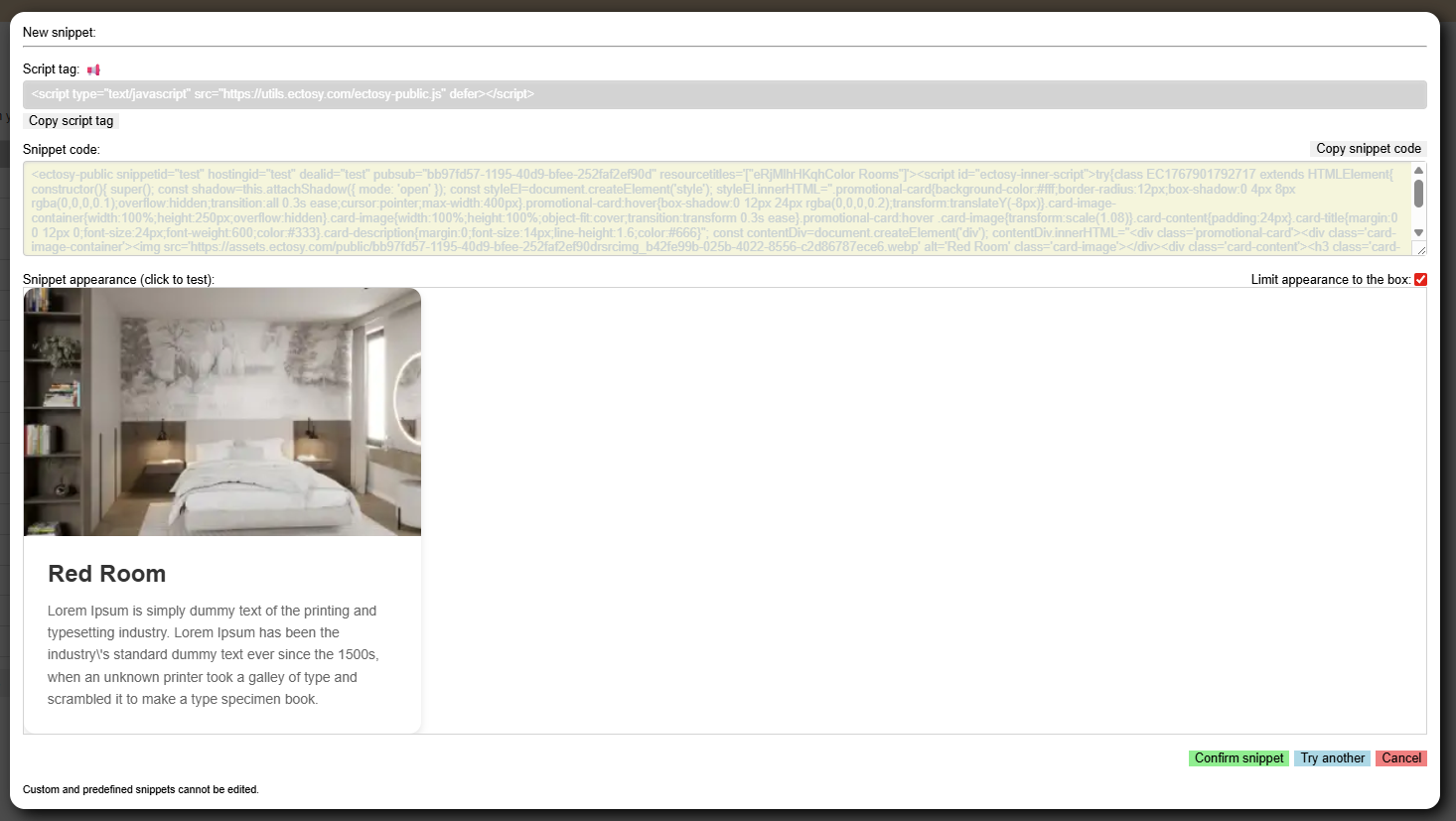
Confirm snippet again if you are satisfied, Try another or Cancel. For Gemini API keys you will also have 'Continue conversation' option. If you click it your next prompt will have 'Conversation id' above prompt input area and you can just continue your stateful prompting.
Custom AI snippet is no different from regular custom snippet, except its code is generated by AI. Note: before you can use AI to generate Ectosy content you need to enter your AI API key into Options and settings->User->AI API Keys. Get your AI API key(s) with Claude, Gemini Interactions or OpenAI Platform.
Enter AI prompt for generating code, include resources context (checkbox option) if your prompt references some of its properties (image, description) and choose the AI API key you want to use. Click on Generate code.
Confirm snippet and see the result:
Confirm snippet again if you are satisfied, Try another or Cancel. For Gemini API keys you will also have 'Continue conversation' option. If you click it your next prompt will have 'Conversation id' above prompt input area and you can just continue your stateful prompting.